
In part 1 you deployed the Microsoft 365 Roadmap MCP Server. In this post, we’ll integrate that server into a custom agent built with Copilot Studio.
This is intentionally the “happy path” integration:
- The Roadmap API is public.
- The MCP server requires no Entra app registration and no OAuth.
- We’re focusing on how an agent discovers and calls MCP tools.
Later in the series we’ll layer on authentication using a different server (https://github.com/mjfusa/mcp-message-center-server). We are not adding auth to the Roadmap server.
What you’re integrating
Roadmap MCP server repo:
Key details (from the server’s README):
- Health:
GET /healthz - MCP endpoint:
POST /mcp(JSON-RPC 2.0) - Tool:
getM365RoadmapInfo- Arguments:
filter,orderby,top,skip,count
- Arguments:
Prerequisites
You’ll need:
- Access to Copilot Studio (create/edit agents)
- The Roadmap MCP server should be deployed and running (see Part 1 for setup instructions) on port
8081or another port you choose. - A reachable URL for the MCP server:
- If running locally, use a tunneling service (e.g., Cloudflare Tunnel, DevTunnel) to expose
http://localhost:8081to a public URL. - The quickest way is to user a local tunnel. See below. However, a hosted deployment (e.g., Azure Container Apps) is more stable for longer-term use.
- If hosted, ensure you have the base URL (e.g.,
https://your-app.your-region.azurecontainerapps.io).
- If running locally, use a tunneling service (e.g., Cloudflare Tunnel, DevTunnel) to expose
You’ll also want:
curlavailable in your terminal (Windowscurl.exeis fine)
Step 1 — Decide where the MCP server will run
Copilot Studio must be able to reach your MCP endpoint. Pick one:
Option A: Use a local tunnel (for quick dev)
If you run the server locally (npm run dev), expose it temporarily via a tunnel so Copilot Studio can call it.
Tools like Cloudflare Tunnel or DevTunnel work well.
Quick example with Dev Tunnel:
- Install Dev Tunnel:
winget install Microsoft.devtunnel - Login:
devtunnel user login. You will need a GitHub or Microsoft account. - Start your MCP server locally:
npm run dev(default port `8081) - Start the tunnel:
| |
Note the tunnel URL (e.g., https://qx8mj0tl-8081.usw2.devtunnels.ms).
- Start tunnel inspection using inspection url provided in the terminal (e.g.,
https://qx8mj0tl-8081-inspect.usw2.devtunnels.ms). We will use this to monitor requests to the Roadmap MCP server.
Option B: Use a hosted URL (for stability and production)
Deploy the server and use the resulting base URL. You should end up with:
https://<your-host>/healthzhttps://<your-host>/mcp
Regardless of approach, your goal is a reachable https://.../mcp endpoint.
Step 2 — Validate the MCP server with curl (before Copilot Studio)
Do this first. It separates “server is working” from “Copilot Studio integration is working.”
Set a base URL:
| |
2a) Health check
| |
You want 200 OK.
2b) Call the MCP tool (fetch 5 items)
| |
2c) Go back to the tunnel inspection browser session (if using a tunnel)
Clicking on the payload tab you should see the request to the MCP server.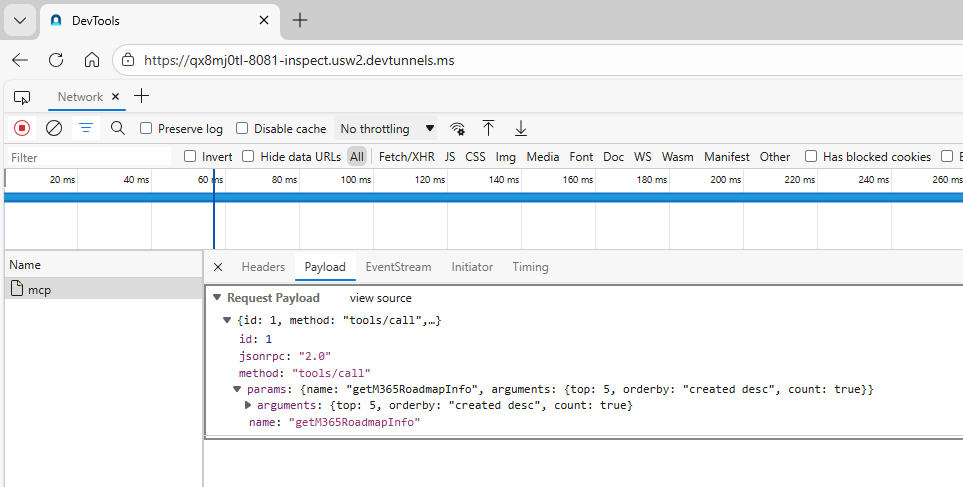
If that succeeds, you’re ready to wire it into Copilot Studio.
Step 3 — Create a custom agent in Copilot Studio
- Open Copilot Studio.
- Click ‘Agents’.
- In the ‘Start building by describing’ field, enter :
| |
Click the arrow (⇨) to create the agent. You should see that Copilot Studio has given a name to the agent based on your description. (E.g. Microsoft 365 Feature Release Assistant) Also, instructions have been auto-generated. You can edit these later.
To only have information from the Roadmap MCP server, disable web and internal knowledge:
a. Click on the ‘Settings’ tab
b. Under ‘Knowledge sources’, toggle off ‘Web search’ and ‘Internal knowledge’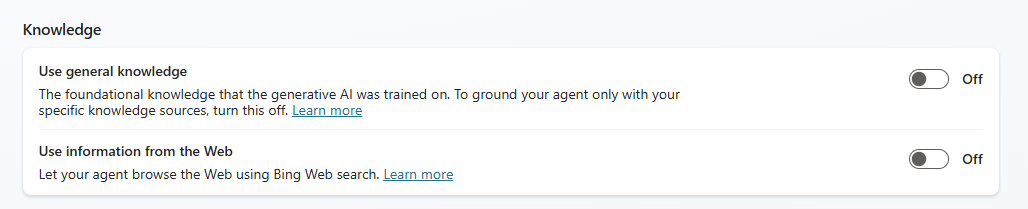
Add the following in Suggested Prompts: Title: “What are the latest Copilot roadmap items?” Prompt: “Show roadmap items regarding Copilot published in the last two weeks.”
Add the Roadmap MCP server as a tool/action:
a. Click on ‘Add tool’
b. Click on New tool
c. Click on Model Context Protocol
Complete the fields as follows:
- Server name:
M365 Roadmap MCP Server - Server description:
This server provides access to Microsoft 365 Roadmap information via an OData interface - Server URL:
https://<your-host>/mcp(replace<your-host>with your actual host / tunnel URL). Make sure you add the trailing/mcp. - Authentication: None
- Click on Create
- Create a connection to the MCP server.
- Click ‘Add and configure’.
- Go back to the tunnel inspection browser session
Inspect each MCP request by clicking on the Payload tab. You should see the requests from Copilot Studio to the MCP server.
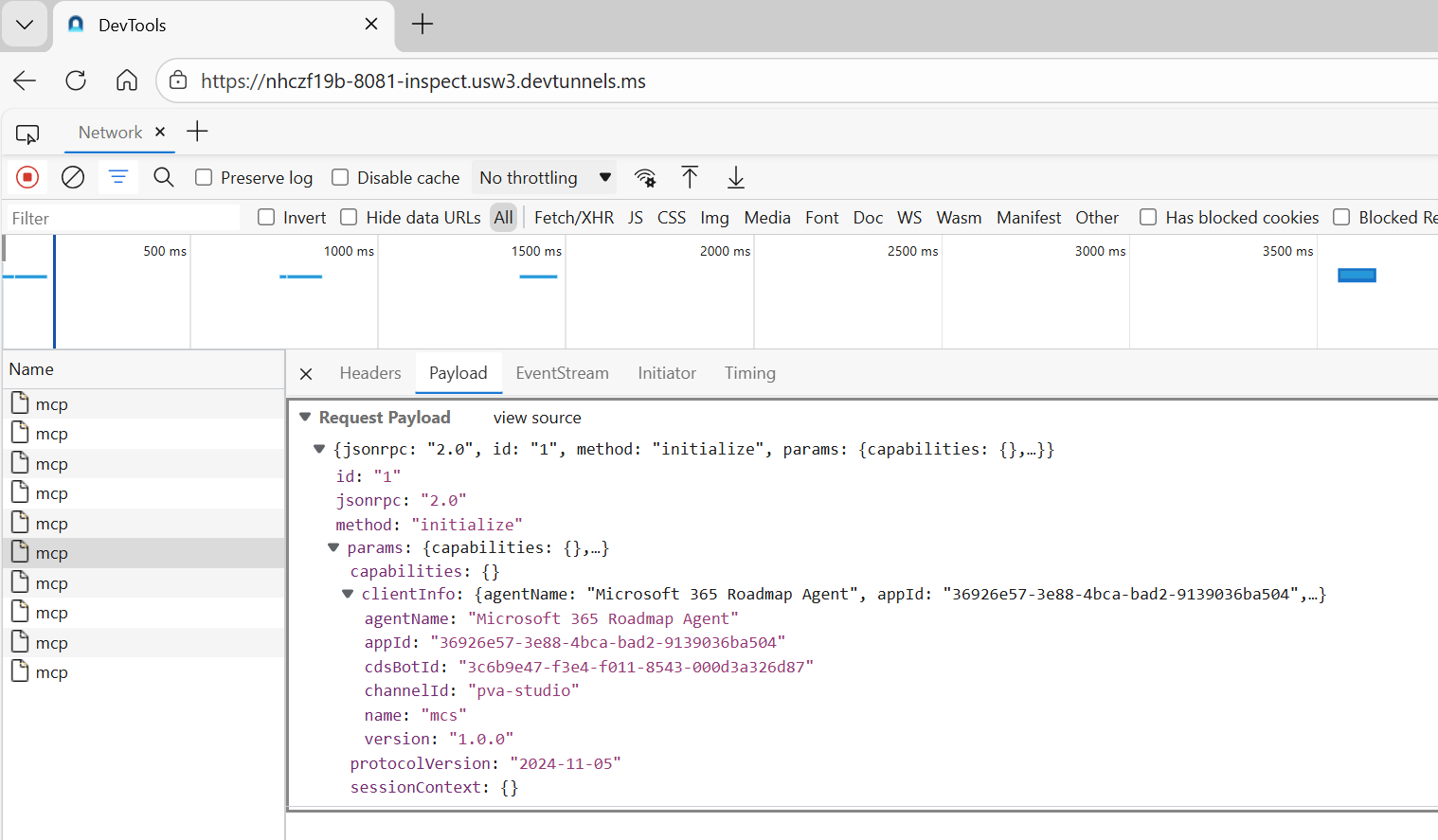
Note the ‘initialize’, ’notifications/initialized’, and ’tools/list’ requests.
Test the agent
- In the ‘Test your agent’ chat, ask: “Show me the newest 5 roadmap items.”
Note: The first time you run the agent, you will need to establish a connection. Click on ‘Open connection manger’, Click ‘Connect’ to pick the connection created in the previous step, Click ‘Submit’. Close the browser tab, and then click ‘Retry’.
The agent will return something like this:
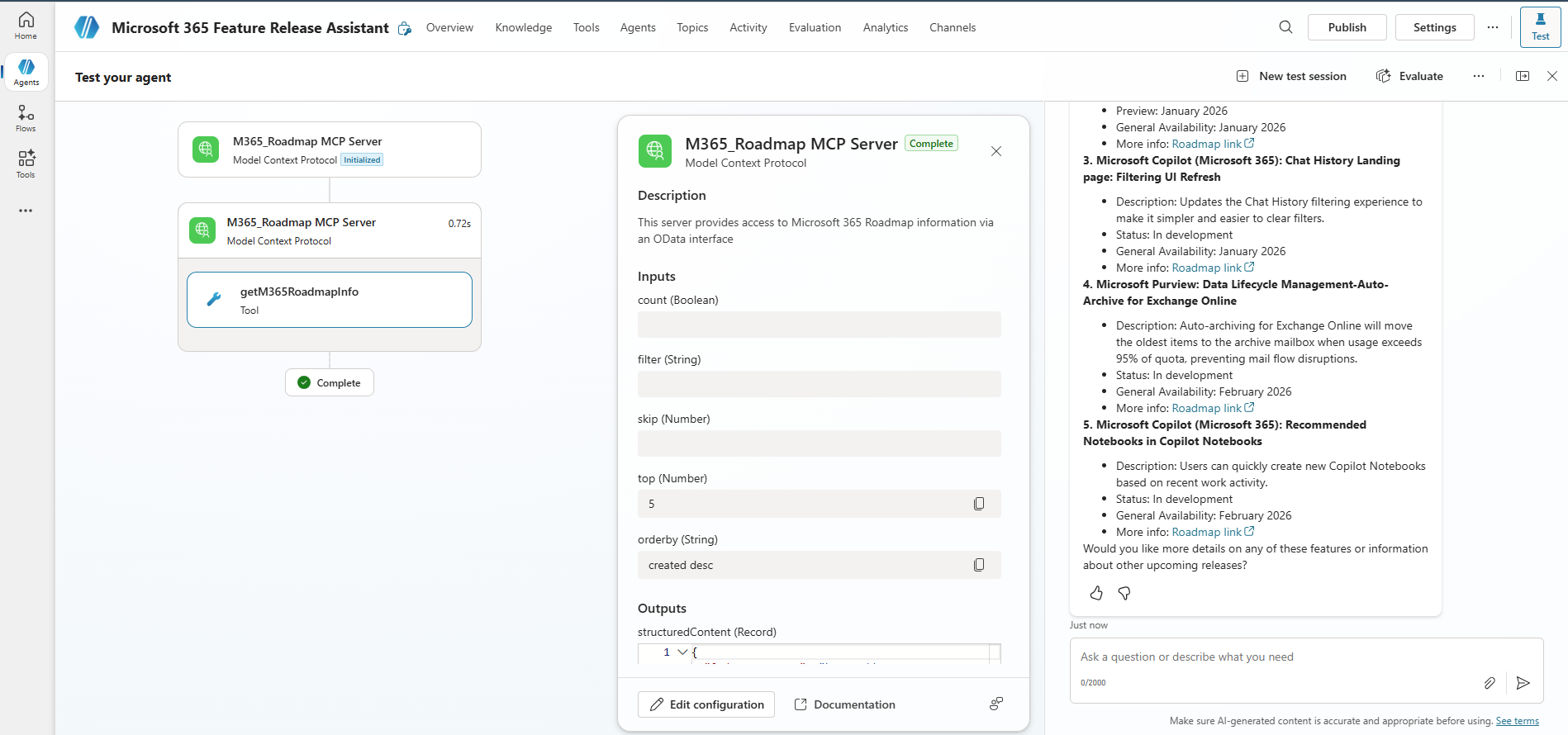
You can retrieve Microsoft 365 Roadmap items using the connected tool
getM365RoadmapInfo. When asked about upcoming or recently released features, call agent will call the tool and summarize results.
Instruct the agent how to call the tool (minimal prompt contract)
You can update the instructions to describe how you want the roadmap information presented. Which fields to include, formatting, etc.
Even when a tool is connected, agents behave better when you give them a “mini contract”. Add guidance like:
- Use
getM365RoadmapInfofor roadmap questions. - Default to
top=5ortop=10. - Prefer
orderby="created desc"for “latest” questions. - Use
count=truewhen asked “how many”. - When filtering titles, use case-insensitive contains patterns like:
contains(tolower(title), 'copilot')
This keeps tool calls predictable without overprompting.
Step 6 — Test the agent end-to-end
In Copilot Studio’s test chat:
- Ask: “Show me the newest 5 roadmap items.”
- Ask: “Show roadmap items that mention multiple Microsoft 365 products like Copilot, Teams and SharePoint”
- Ask: “Show roadmap items available for GCC High and DoD cloud instances with General Availability in the next month.”
Expected behavior:
- The agent calls
getM365RoadmapInfo. - It summarizes the returned
valueitems (title, summary, dates). - The output includes links to the roadmap items on the M365 Roadmap site.
Troubleshooting
“Health works but tool calls fail”
- Verify
POST /mcpis reachable from the same network path as Copilot Studio (not just from your laptop).
405 Method Not Allowed
/mcpis POST-only.
Tool not discovered
- Confirm the MCP endpoint responds to
tools/list:
| |
Summary
You now have a Copilot Studio custom agent that can call a real MCP tool end-to-end:
- Copilot Studio agent discovers the MCP tool surface
- Calls
getM365RoadmapInfothroughPOST /mcp - The MCP server validates inputs (from OpenAPI-derived schemas) and proxies OData queries to the Roadmap API
Next up: we’ll expand integration patterns (including declarative agents), then switch servers to https://github.com/mjfusa/mcp-message-center-server to add authentication and token handling.